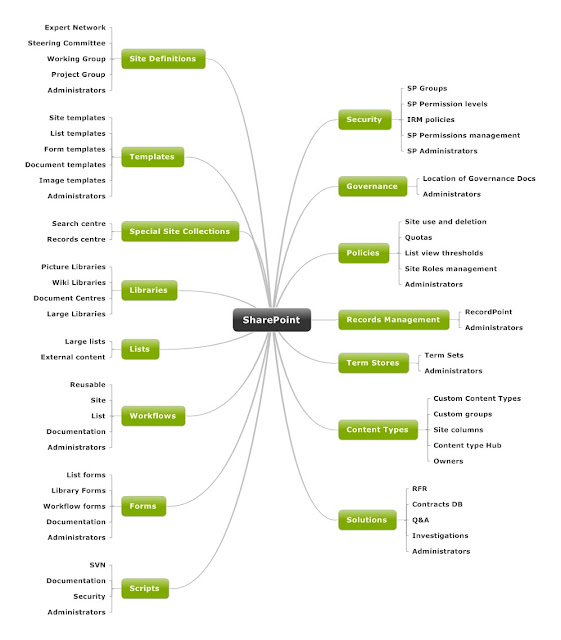
Can't remember where I got this from but it's useful:
When creating SharePoint test environments, one of the prerequisites is to have the necessary SharePoint service accounts. The powershell script below will enable you to create the AD accounts and ready for use when configuring the SharePoint farm. These accounts relate to SharePoint farm configuration, web application pool accounts, service application accounts, search service and content access accounts, user profile synchronisation accounts and object cache accounts. By all means you can modify the values to suit your requirements.
# Get the logged-on user's domain in DN form
$mydom = (get-addomain).distinguishedname
# Specify the OU we want to create the users in
$ouName = "SP Service Accounts"
# Build the full DN of the target OU
$oudn = "OU=$ouname,$mydom"
# Check if the target OU exists. If not, create it.
$OU = get-adorganizationalunit -Filter { name -eq $ouname }
if($OU -eq $null)
{New-ADOrganizationalUnit -Name $OUName -Path $mydom}
else
{write-host "The OU" $ou "already exists."}
# Create users
New-ADUser –Name "SP_Farm" –SamAccountName "SP_Farm" –DisplayName "SP_Farm" `
-Path $oudn –Enabled $true –ChangePasswordAtLogon $false `
-AccountPassword (ConvertTo-SecureString "pass@w0rd" -AsPlainText -force) -PassThru
New-ADUser –Name "SP_ServiceApp" –SamAccountName "SP_ServiceApp" –DisplayName "SP_ServiceApp" `
-Path $oudn –Enabled $true –ChangePasswordAtLogon $false `
-AccountPassword (ConvertTo-SecureString "pass@w0rd" -AsPlainText -force) -PassThru
New-ADUser –Name "SP_Portal" –SamAccountName "SP_Portal" –DisplayName "SP_Portal" `
-Path $oudn –Enabled $true –ChangePasswordAtLogon $false `
-AccountPassword (ConvertTo-SecureString "pass@w0rd" -AsPlainText -force) -PassThru
New-ADUser –Name "SP_MySites" –SamAccountName "SP_MySites" –DisplayName "SP_MySites" `
-Path $oudn –Enabled $true –ChangePasswordAtLogon $false `
-AccountPassword (ConvertTo-SecureString "pass@w0rd" -AsPlainText -force) -PassThru
New-ADUser –Name "SP_Search" –SamAccountName "SP_Search" –DisplayName "SP_Search" `
-Path $oudn –Enabled $true –ChangePasswordAtLogon $false `
-AccountPassword (ConvertTo-SecureString "pass@w0rd" -AsPlainText -force) -PassThru
New-ADUser –Name "SP_SearchAccess" –SamAccountName "SP_SearchAccess" –DisplayName "SP_SearchAccess" `
-Path $oudn –Enabled $true –ChangePasswordAtLogon $false `
-AccountPassword (ConvertTo-SecureString "pass@w0rd" -AsPlainText -force) -PassThru
New-ADUser –Name "SP_UPSync" –SamAccountName "SP_UPSync" –DisplayName "SP_UPSync" `
-Path $oudn –Enabled $true –ChangePasswordAtLogon $false `
-AccountPassword (ConvertTo-SecureString "pass@w0rd" -AsPlainText -force) -PassThru
New-ADUser –Name "SP_SuperUser" –SamAccountName "SP_SuperUser" –DisplayName "SP_SuperUser" `
-Path $oudn –Enabled $true –ChangePasswordAtLogon $false `
-AccountPassword (ConvertTo-SecureString "pass@w0rd" -AsPlainText -force) -PassThru
New-ADUser –Name "SP_SuperReader" –SamAccountName "SP_SuperReader" –DisplayName "SP_SuperReader" `
-Path $oudn –Enabled $true –ChangePasswordAtLogon $false `
-AccountPassword (ConvertTo-SecureString "pass@w0rd" -AsPlainText -force) -PassThru
#End