Wednesday, 6 September 2017

Update site logo on all SharePoint sites in a site collection

Update site logo on all SharePoint sites in a site collection

Hi there - I used the script below to update the site logo on a bunch of SharePoint Site Collections today - hope it proves useful to you

 ## Set up the variables

$spWeb = Get-SPWeb $SiteURL
$logopath = "C:\Scripts\Logo\logo_SPsites.png"

Write-Host("- Uploading and updating site logo") -ForegroundColor Magenta


## Creating instance of Folder
$spFolder = $spWeb.GetFolder("SiteAssets")

## Getting the file on Disk that we want to upload
$file = Get-Item $logopath

## Uploading the file the the Site Assets library

$null = 
$spFolder.Files.Add("SiteAssets/logo_SPsites.png",$file.OpenRead(),$false)
   

## Set the logo on all webs in the site:      

$sitelogo="$siteurl/$spFolder/ERIS_logo_SPsites.png"

$Site=$SiteURL

$Sites=new-object Microsoft.SharePoint.SPSite($Site)

foreach($web in $Sites.Allwebs) {

$web.SiteLogoUrl=$sitelogo

$web.Update()}


$Sites.Dispose()

###########################################################################

That's it!

Monday, 4 September 2017

Set-SPEnterpriseSearchTopology: The server was unable to process the request due to an internal error

OK So after moving the search index location when I tried to set the topology I got this cryptic error:


First try a Reboot!

If that doesn't work then try again - this time with more available RAM - if command doesn't fail immediately then most likely it's going to run:

This was basically a low resource error

Sunday, 9 April 2017

PowerShell remoting - create folder on remote servers

Preparation

Read-Host -AsSecureString | ConvertFrom-SecureString | Out-File C:\Scripts\<username>\<username>_pwd.txt

Variables

$SPserver = "<servername>"

$username = "\"
$password = Get-Content C:\Scripts\<username>\<username>_pwd.txt | ConvertTo-SecureString

Credentials = New-Object -TypeName System.Management.Automation.PSCredential -ArgumentList $username, $password

Connection

#Create remote session to SP server
$session=New-PSSession -ComputerName $SPserver -Credential $credentials

Create DIR

Invoke-Command -Session $session -ArgumentList $output -ScriptBlock  { mkdir E:\<FolderName> }

#Removing remote sessions
Get-PSSession |Remove-PSSession

Open a SharePoint list using PowerShell

Keep using this so put it up here for reference:


#Open SharePoint List
$SPServer=
"http://abcd01:9999/"
$SPAppList=
"/Lists/UPList/"
$spWeb =
Get-SPWeb $SPServer
$spData = $spWeb.
GetList($SPAppList)

Export SharePoint Group members to .csv

Export SP Group members to .csv 

# Script for extracting members of SP groups in a site to a .csv file

This is how it looks in ISE:


Here is the Powershell:


Add-PSSnapin "Microsoft.SharePoint.PowerShell"

function global:Get-SPSite($url)
 {
    return new-Object Microsoft.SharePoint.SPSite($url)
 }

function global:Get-SPWeb($url)
{
  $site= New-Object Microsoft.SharePoint.SPSite($url)
        if($site -ne $null)
            {
               $web=$site.OpenWeb();     
            }
    return $web
}

$URL="https://extranet.domain/sites/Meetings"
     $site = Get-SPSite $URL
    
     #Write the Header to "Tab Separated Text File"
        "Site Name`t  URL `t Group Name `t User Account `t User Name `t E-Mail" | out-file "c:\Scripts\UsersandGroupsRpt.txt"
        
     #Iterate through all Webs
      foreach ($web in $site.AllWebs)
      {
        #Write the Header to "Tab Separated Text File"
        "$($web.title) `t $($web.URL) `t  `t  `t `t " | out-file "c:\Scripts\UsersandGroupsRpt.txt" -append
         #Get all Groups and Iterate through  
         foreach ($group in $Web.groups)
         {
                "`t  `t $($Group.Name) `t   `t `t " | out-file "c:\Scripts\UsersandGroupsRpt.txt" -append
                #Iterate through Each User in the group
                       foreach ($user in $group.users)
                        {
                           #Exclude Built-in User Accounts
                    if(($User.LoginName.ToLower() -ne "nt authority\authenticated users") -and ($User.LoginName.ToLower() -ne "sharepoint\system") -and ($User.LoginName.ToLower() -ne "nt authority\local service"))
                    {
                                "`t  `t  `t  $($user.LoginName)  `t  $($user.name) `t  $($user.Email)" | out-file "c:\Scripts\UsersandGroupsRpt.txt" -append
                             }
                        }
         }
       }

    write-host "Report Generated at c:\Scripts\UsersandGroupsRpt.txt"


Wednesday, 15 March 2017

Powershell script: bulk add users to SharePoint group

Note - You may need to check the Claims prefix


Here's the PowerShell:

<# Instructions:

Create a Users.txt in this format (all in one column):

    i:0#.w|domain\aparnis
    i:0#.w|domain\candlandan
    i:0#.w|domain\stivj001
    i:0#.w|domain\attaj001
    i:0#.w|domain\marchorovitz
    etc

Populate the variables

#>

## Adding snap-in
Add-PSSnapin "Microsoft.SharePoint.PowerShell"

# Variables

$group = "External Readers"
$loc = "C:\scripts"        
$Users = Get-Content "$loc\Users.txt"        
$web = Get-SPWeb -identity $siteCollUrl

# code

foreach ($User in $Users) {
    $web.EnsureUser($User)        
    Set-SPUser -Identity $User -Web $siteCollUrl -Group $group         
}

# Dispose the web object


$Web.Dispose()

Tuesday, 14 February 2017

Translating SharePoint Audit log reports:

Translating Site ID and PrincipleID

I produced a Audit report for Security events and though I can see that some security events occurred on the relevant dates I couldn't find a way to translate the Site ID and the Principle ID in the Site ID and Event Data columns. 

It can be done! Enter PowerShell!!!!


Audit Log exported to Excel and downloaded: It just looks horrible


Translate the siteID:

$site = get-spsite -limit all
$site | select ID, url | ft -AutoSize | out-file C:\Scripts\siteID.txt

Then I did a find in the .txt file to match the site ID with the URL

e.g.


Translate the PrincipleID:
  
$site = new-object Microsoft.SharePoint.SPSite("http://SPWebApplication");  
$ServiceContext = [Microsoft.SharePoint.SPServiceContext]::GetContext($site);  
$ProfileManager = new-object Microsoft.Office.Server.UserProfiles.UserProfileManager($ServiceContext)    
$AllProfiles = $ProfileManager.GetEnumerator() 

$AllProfiles | select displayname,recordID | ft -autosize | out-file c:\scripts\profiles.txt

Then do a Find on the Principle ID and you will get the Display name mapping:


Translating groupid and userid

/_layouts/userdisp.aspx?id=


E.G

I’ve run a custom security report and the results show 5 permissions edits:


The Event Data column shows the user affected in group\user format


To find:

/_layouts/userdisp.aspx?id=218

/_layouts/userdisp.aspx?id=283

/_layouts/userdisp.aspx?id=8

Etc

This shows you either the user's information or the group's members depending on the entered id 

So: 
/_layouts/userdisp.aspx?id=218 - shows a user id
/_layouts/userdisp.aspx?id=8 - shows group membership


Note: The ids are unique within site collections only. So ...?id=42 within site collection A might be a different user or group in site collection B.


That's all folks - Thanks for visiting!

Sunday, 29 January 2017

Clusters, listeners, always on, VNNs, VCO, WSFC, AGLs, VIPs, WTF? How does all this stuff fit together?

I put together some notes on Clusters, listeners, always on etc just to clear things up in my own mind:


The cluster name object (CNO) is an Active Directory computer object linked with the network resource Cluster Name (the Windows Cluster)

The Availability Group Listeners are registered as Cluster Resources - and in Active Directory as Virtual Computer Objects (VCOs)

The cluster name account requires the "Create Computer objects" permission when you create a clustered service or an application. When the cluster name account does not have
this permission, SQL Server cannot create the availability group listener

When you create a new availability group listener it becomes a resource in a cluster with an associated virtual network name (VNN), Virtual IP (VIP) - and Availability Group

Listeners are registered as Cluster Resources
  
This is how The Listener is related to the cluster – it is registered as a cluster resource when it is created
  
The listener leverages the Windows Failover Cluster (WSFC) for its functionality; you cannot create the listener without the cluster already existing as the cluster itself creates the listener. As such, it is Active Directory (AD) that hosts it and the nodes that use the cluster can use any services that cluster has, in this case the listener.

Essentially someone creates the cluster, and if there are proper AD permissions then it creates the Availability Group (AG) within the cluster, and then the listener within the AG when those are created

The Availability Group Listener (AGL) is part of the AG's Windows Server Failover Cluster (WSFC) Resource. It is a Virtual Network Name with n number of IP addresses. Being in a cluster resource it will only run on a single node of the WSFC and that node will be the primary node of the AG. It is not a thread within SQL Server. The WSFC handles the failover of the AG resource and the AG databases will not come online without the AG resource residing on its node of the WSFC.
The listener just handles connection forwarding. When connecting to the read/write replica the connection will hit the listener and then the listener will tell the client to connect to the primary replica's IP address. In the case of read-only routing it will follow the below work flow

Tuesday, 27 December 2016

setting MAXMEM on servers in an Always On group


  1. No restarts required
  2. Use the following to set MAXMEM to 60GB (SQL had 64GB RAM so we left 4GB for the OS)

Enable advanced options:
USE master
EXEC sp_configure 'show advanced options', 1
RECONFIGURE WITH OVERRIDE

Set the maximum amount of memory to 64 MB:
USE master
EXEC sp_configure 'max server memory (MB)', 
61440
RECONFIGURE WITH OVERRIDE

Then refresh SSMS and review updated value in Properties


Thursday, 15 December 2016

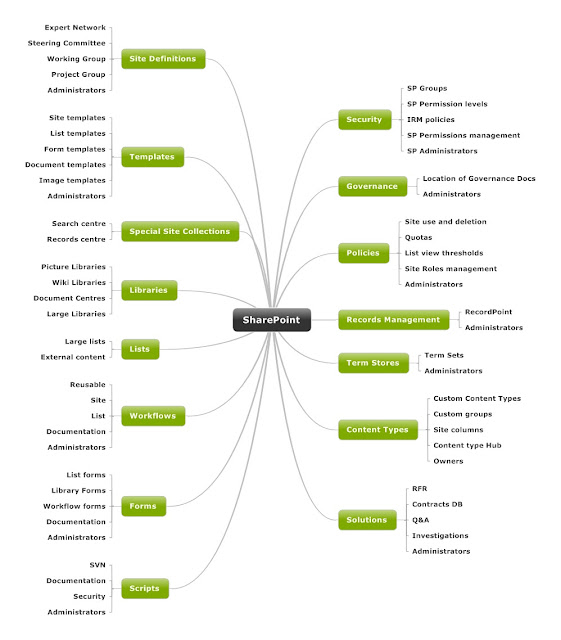
SharePoint Information Architecture Diagram

Here is the template I use for Information Architecture designs. It's built using Mindjet and I flesh the nodes out with the low level detail to build a comprehensive and easily readable document - some of the nodes on this one I've already started populating with the customised/third party solutions being used at this site (see Site Definitions, Records Management etc) - you get the idea - it grows...

Could also add Search top level node to this


Tuesday, 13 December 2016

Infopath substring function - use it to remove semi-colon

Doing some InfoPath and used the substring function with a nested string length function to remove the trailing semi-colon from a username

The username was stored in a list column called Workflow_To Notify

The substring function takes three arguments

1 - The text string which in this case is defined in the @workflow_ToNotify attribute

2 - The starting point - InfoPath starts counting at 1

3 - Use this with string-length and -1 to remove the last character - in this case the semi-colon


Happy SharePointing... InfoPathing... you know... whatever's your ing


Sunday, 11 December 2016

Managing SharePoint: Truncating the Log file on the Always On secondary

Had an issue where the backup had stopped running and the transaction logs were full

How to resolve this is an always on environment?

  1. On the Primary: Set the recovery model of the Config DB to Simple
  2. Full backup
  1. Remove from Availability group - now the configDB exists on Primary but it is not synching to the Secondary

  1. On the Secondary: Delete the config DB

Did you just say delete the config DB??? - Yes, it's on the secondary. It's ok. The Primary isrunning and not in the AG

  1. On the Primary: Shrink the Log files to 1,024MB - just the logs
  2. Add the Config DB back to the AOAG

And all was well again - time for a coffee

SharePoint Solution checker

Here is a nice little script I use to audit Solutions:


#This loads the SharePoint assemblies


asnp *sh* -ea 0

#Start solution audit

$allsolutions = (get-spsolution).SolutionID

foreach
($solution in $allsolutions)
{
$filteredfeaturelist = get-SPFeature | where {$_.SolutionID -eq "$solution"}
write-host -background Blue Name = $filteredfeaturelist.DisplayName
write-host -BackgroundColor Green -ForegroundColor Black Version = $filteredfeaturelist.ReceiverAssembly
write-host ""

}

SharePoint roles: Site Owner vs Site Moderator

These roles are often used in SharePoint deployments

Here is a break of the typical responsibilities:

Site Owner
Responsibilities: The Site Owner is formally responsible for the content of the site. He/she defines the overall purpose and need for the site, functional requirements (including components and layout), and makes high-level decisions about the site’s maintenance (such as closure/decommissioning of the site when no longer required). The Site Owner is also responsible for defining access permissions for the site, taking into account the need for collaboration as well as the potential sensitivity of the content involved.
Suggested person: The person within the organisation who is deemed responsible for the group/activity/function for which the site was created. Ideally a Manager (Team Leader or higher), Project Manager or Committee/Group member.


Site Moderator

Responsibilities: The Site Moderator is responsible for the general administration of the site. Tasks may include: performing user management within the available security groups on approval of the Site Owner; resolving document check-out issues; maintaining the site’s folder structure; first-line contact person for site members; raising tickets in case of technical issues. The Site Moderator is not responsible for making decisions about the site’s content; these are responsibilities of the Site Owner.

SharePoint Information Architecture Diagram

Here is the template I use for Information Architecture designs. It's built using Mindjet and I flesh the nodes out with the low level d...