Showing posts with label SharePoint 2010 installation. Show all posts

Monday, 16 April 2012

Metadata and Content Types in SharePoint 2010

Metadata

When you create/upload a document you may be prompted to enter some additional information

How much and what types will vary depending on how the Team Site has been set up

For Example: In this case when the document is uploaded the user is prompted to enter a title for the document, select a project and select a SharePoint category


The user enters the title, selects a Project and then clicks the browse button next to the SharePoint category field

The user then selects from the available fields:


Now the document appears in the document library and the Title, Project and SharePoint Category columns are displayed containing the metadata


Metadata just enables you to look quickly at content and determine what it is.

MANDATORY metadata fields are marked by a RED asterisk (*)

To Edit Metadata

(a) Click tick box alongside document 
(b) Choose Documents Tab
(c) From Manage Tab, click on Edit Properties
(d) Amend metadata as appropriate
(e) Click Save to save the metadata changes

To View the Metadata

(a) Click into the tick box alongside the document
(b) On the Documents Tab, in the Manager Group, click on View Properties
(c) The Metadata screen will be displayed

Content Types

When you create a new document from the New button in a document library – the dropdown may contain a selection of templates – these are called Content Types

By default SharePoint creates one Content Type for a Document Library – called Documents

In the case below the Team Site Owner or Administrator has created 3 more:


Ensure when creating new documents that you are using the correct Content Type. Each Content Type may have different metadata associated with it. Workflows and retention policies may also be mapped to Content Types

Sunday, 28 February 2010

First install of SharePoint 2010

HOW I GOT SHAREPOINT 2010 RC INSTALLED:


Deployed W2k8 R2 onto 2 virtual servers on the same LAN both with Internet connectivity

Server 1 will be the DC

Server 2 will be the SharePoint Server

Server 1 had 1GB RAM and 2 had 2Gb RAM (Install failed at Creating Sample Data in the PSConfig Wizard when it only had 1GB RAM – recommended is 4GB RAM)

Server 1 and 2 have 20GB disk space (After installed SharePoint on Server2 I immediately had a low disk space warning even though there was still 6GB on the drive. The warning was – Availabe disk space is less than 5 times the value of Physical memory. This does not provide enough room for a full memory dump with continued operation. It could also cause problems with the Virtual Memory swap file). Recommended is 40GB

Ran Windows Updates on both

Required permissions:

In order to install SharePoint Server 2010, the logon account that you are using on the virtual machine must be a member of:

• The local Administrators group on the virtual machine

• The SQL Server dbcreator fixed server role

• The SQL Server securityadmin server role

On Server 1 – run DCpromo and create a new domain 2010.net

On Server 2 – join to domain

You can install SharePoint on a DC but some extra config is required:

Start Windows PowerShell with the Run as administrator option and run the following commands to enable deployment on a domain controller:

$acl = Get-Acl HKLM:\System\CurrentControlSet\Control\ComputerName

$person = [System.Security.Principal.NTAccount]"Users"

$access = [System.Security.AccessControl.RegistryRights]::FullControl

$inheritance = [System.Security.AccessControl.InheritanceFlags]"ContainerInherit, ObjectInherit"

$propagation = [System.Security.AccessControl.PropagationFlags]::None

$type = [System.Security.AccessControl.AccessControlType]::Allow

$rule = New-Object System.Security.AccessControl.RegistryAccessRule($person, $access, $inheritance, $propagation, $type)

$acl.AddAccessRule($rule)

Set-Acl HKLM:\System\CurrentControlSet\Control\ComputerName $acl


On the virtualization server, create an installation point that contains the SharePoint Server software or provide media, such as an ISO image, that can be accessed from the virtual machine.

On Server 2 – run the SharePoint.exe and run the Microsoft SharePoint 2010 Products Preparation Tool. This tool checks for required products and updates. (Must have internet connection for this to succeed)

Run the Setup Wizard

Interestingly when the Wizard closes the Template Selection Page opens (_layouts/templatepick.aspx) prompting you to create a site in the default SharePoint Web App


From the Start menu - browse to Central Admin.


TIPS:


If you are prompted for your user name and password, perform the following procedures:

• Add the SharePoint Central Administration Web site to the list of trusted sites

• Disable Internet Explorer Enhanced Security settings

If you receive a proxy server error message, perform the following procedure:

• Configure proxy server settings to bypass the proxy server for local addresses

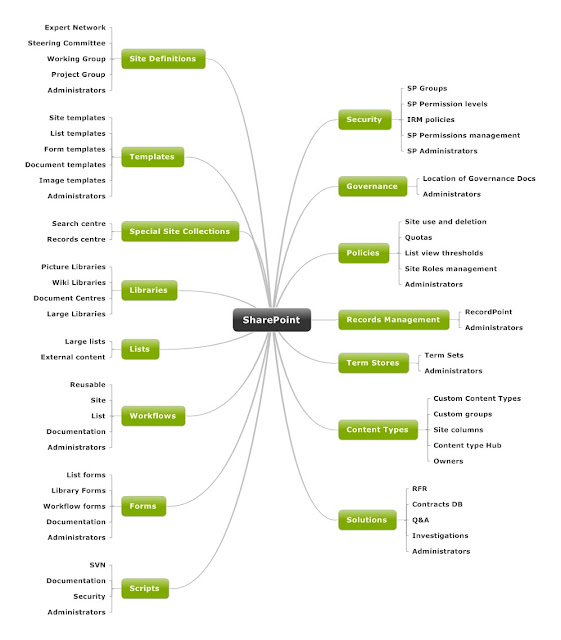
SharePoint Information Architecture Diagram

Here is the template I use for Information Architecture designs. It's built using Mindjet and I flesh the nodes out with the low level d...