
Showing posts with label SQL. Show all posts
Showing posts with label SQL. Show all posts
Saturday, 14 January 2017


Tuesday, 27 December 2016
setting MAXMEM on servers in an Always On group
- No restarts required
- Use the following to set MAXMEM to 60GB (SQL had 64GB RAM so we left 4GB for the OS)
Enable advanced options:
USE masterEXEC sp_configure 'show advanced options', 1RECONFIGURE WITH OVERRIDE
Set the maximum amount of memory to 64 MB:
USE masterEXEC sp_configure 'max server memory (MB)', 61440RECONFIGURE WITH OVERRIDE
Then refresh SSMS and review updated value in Properties

Sunday, 24 March 2013
Saturday, 23 March 2013
Optimize SQL FOR SP2010
- Respect software boundaries & limits, review the support article and read the maintenance whitepaper
- Use PowerShell to create your farm, the farm configuration wizard is bad
- Dedicate a SQL instance to SharePoint
- Differentiate between & prioritize your disks: tempdb, logs, search, other
- Align all partitions correctly (1024K) and format SQL partitions with the right cluster size (64K)
- Test your SQL disks before using them with sqlio
- Only install the features you need (database engine & maintenance tools at minimum)
- Use a domain user for service account
- Enable instant file initialization
- Configure maximum memory
- Fill factor to 80
- MAXDOP to 1
- Consider multiple data files for your content databases
- Tune autogrowth to a fixed number
- Presize your data & log files
- Use SQL aliases to connect SharePoint to SQL
- Check database integrity weekly with dbcc checkdb
- Learn about index fragmentation, how SharePoint deals with it and what you need to do manually
- Don’t shrink databases unless you’re very sure (causes fragmentation)
- Autoshrink is pure evil, never activate it – certainly not with SharePoint
- Learn about the full & simple recovery models and take a look at how logging & recovery works
- In full recovery model you always need to take log backups or your log file will grow indefinitely – no matter how many full backups you run
Monday, 30 April 2012
SQL for SharePoint Administrators
SANs and LUNs
· SAN configurations affect performance. Nowhere is that more important than with SQL Server. Every document, every list item, every search result, and every user profile is delivered out of a SQL Server database. If those databases are on a slow drive, then SQL Server is slow. If SQL Server is slow, then no amount of configuration trickery can make SharePoint fast. SQL Server really is that important
· The (virtualized) Production farm should have the best-performing LUNs that the SAN can provide
· Ideally, place the tempdb database, content databases, Usage database, search databases, and SQL
Server 2008 transaction logs on separate physical hard disks/LUNs/SAN drive
· Is the search index on a super fast SAN drive? Currently on D:\
· When prioritizing data among faster disks, best practice is to use the following ranking:
1. Tempdb data files and transaction logs
2. Database transaction log files
3. Search databases, except for the Search administration database -
4. Database data files
Optimization
· Limit the content database size to 100GB; use multiple content databases if necessary.
o 100GB is a soft limit imposed by backup times
o DBs are supported up to 200GB
· Create multiple data files and spread them across multiple disks; only create files in the
primary filegroup
· The number of data files should be less than or equal to the number of core CPUs; count dual
core processors as two CPUs; count each processor that supports hyper-threading as one CPU
· Create data files of equal size
Backups of Content DBs
· Governance policy required: e.g. Sites are backed up daily and recoverable up to 14 days
o How far back are sites recoverable now?
o How long do current backups take?
Planning content DBs
Myportal
o Content DB Name: SP_myPortal_CDB
o Read-only: No
o Site collections: 15
o Warning:2000
o Max:5000
Mysite
o Content DB Name: SP_MySite_CDB
o Read-only: No
o Site Collections: 60
o Warning:2000
o Max:5000
· The preferred way for creating databases is to have the DBA pre-create them so that you can just reference the database names when you configure your farm, or create service or web applications.
o The goal is to have the databases available ahead of time, complete with all the settings required by SharePoint
· When SharePoint creates its multitudes of databases, it makes assumptions. E.g. the autogrow settings:
o The database files grow by 1MB at a chunk, almost ensuring that they're going to autogrow with every upload. Not only does this slow down SQL Server (which slows down SharePoint), but it also results in database files that are spread all over your drives in 1MB chunks
o Best practice - Set autogrow to 500MB/1GB
o Autogrow should also be a last resort. Someone, either the SharePoint administrator or a dedicated DBA, should pregrow your databases so that autogrow is unnecessary.
· Recovery model setting needs to be consistent with your disaster recovery plans.
o Do we need transaction logs? If so make sure we're performing routine log backups to keep those .ldf files in check.
o If we don't need transaction logs, switch the databases to the simple recovery model. Doing so will keep your .ldf files from swelling up
· SharePoint only really cares about the Collation, which should be LATIN1_General_CI_AS_KS_WS. Growth settings, file locations and the like are configured at your own discretion. Naturally, you should figure them out when planning your deployment, taking into account the fact that content databases will grow larger (and more quickly) than configuration databases, and that databases for Search can experience some heavy hits in large environments
How is Content DB growth being monitored?
o Web applications are not restricted to a single content database, which means that you can spread site collections within that web application over multiple content databases, keeping them manageable from a backup point of view
o If we have 3 Content DBs - at what point do we need to make another? What is the process for adding a new content DB?
o Limiting DB size will improve manageability, performance, and ease of upgrade for the environment
· Capacity notes
· MS recommends a maximum of 300 content databases per web application in your farm
· MS recommends a maximum of 200 GB of content per content database
· MS recommends site collections be no more than 100 GB in size
· SharePoint's only disk requirement is an 80GB system drive
o SharePoint itself doesn't need much disk space: It uses about 1GB, excluding logs, search index files, and any custom solutions. But that disk also needs to hold Windows and all its associated patches for the next few years. And the disk needs enough space for SharePoint's logs, plus enough space to perform a memory dump in the unlikely event of a problem. Also, NTFS gets fussy when disks are more than 90-percent full, so leave enough space for some overhead, too.
o SharePoint requires at least 80GB, but sometimes that isn't enough. If a SAN is hosting your SharePoint drives, expanding that 80GB system drive to, say, 120GB is painless
Subscribe to:
Posts (Atom)
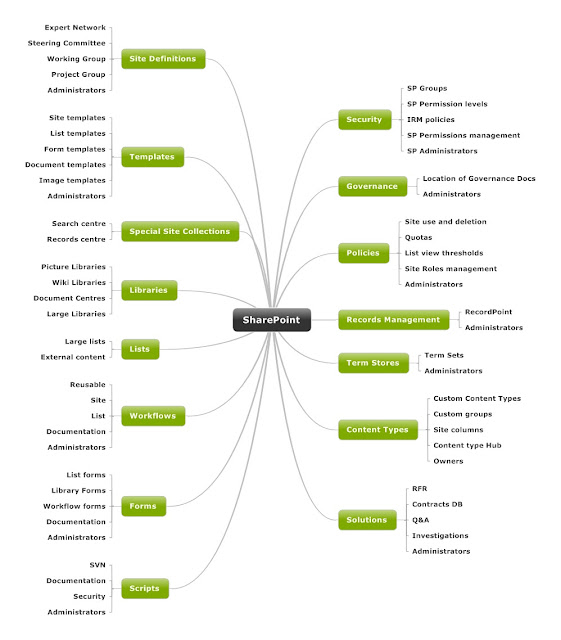
SharePoint Information Architecture Diagram
Here is the template I use for Information Architecture designs. It's built using Mindjet and I flesh the nodes out with the low level d...
-
 Introduction This document is intended to highlight possible causes of poor indexing performance on SharePoint 2007 farms as well as p...
 -
Using stsadm to stop the osearch service will blat all the indexes: In command prompt try running: taskkill.exe /F /IM mssearch.exe /T ...
-
 OPEN FIREWALL PORTS 56737 AND 56738 Submitted Request to Open firewall ports 56737 and 56738 in Approval Environment to enable Office Ser...